

Customers
The Customers page lists the stable Anyway customer ID and normalized email for customers derived from your organization’s orders. Open a customer to review related orders and subscriptions, then follow an item to its full detail view. Customer records are created from commerce activity; this page is not a general-purpose contact database and does not edit customer identity.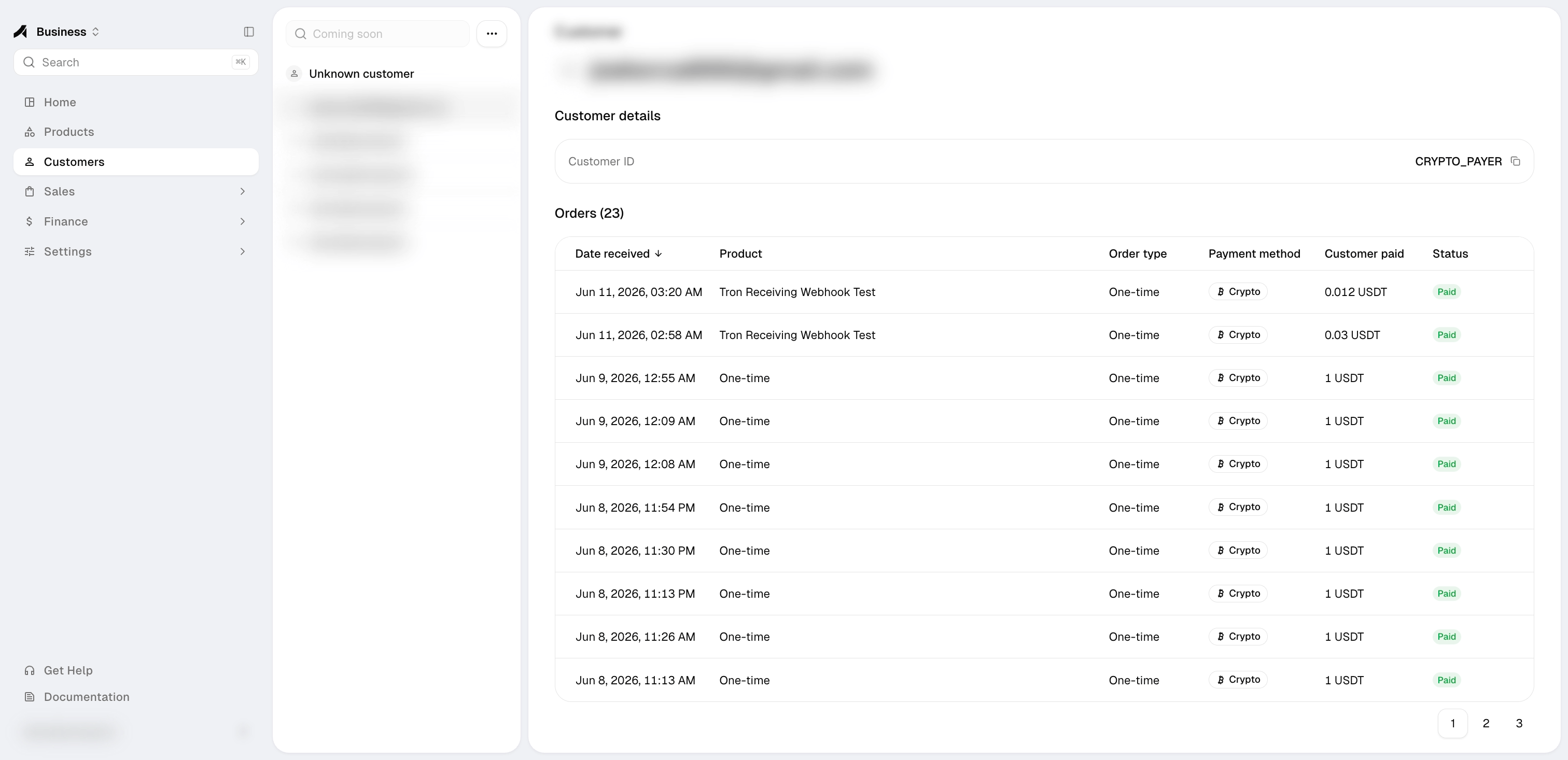
Subscriptions
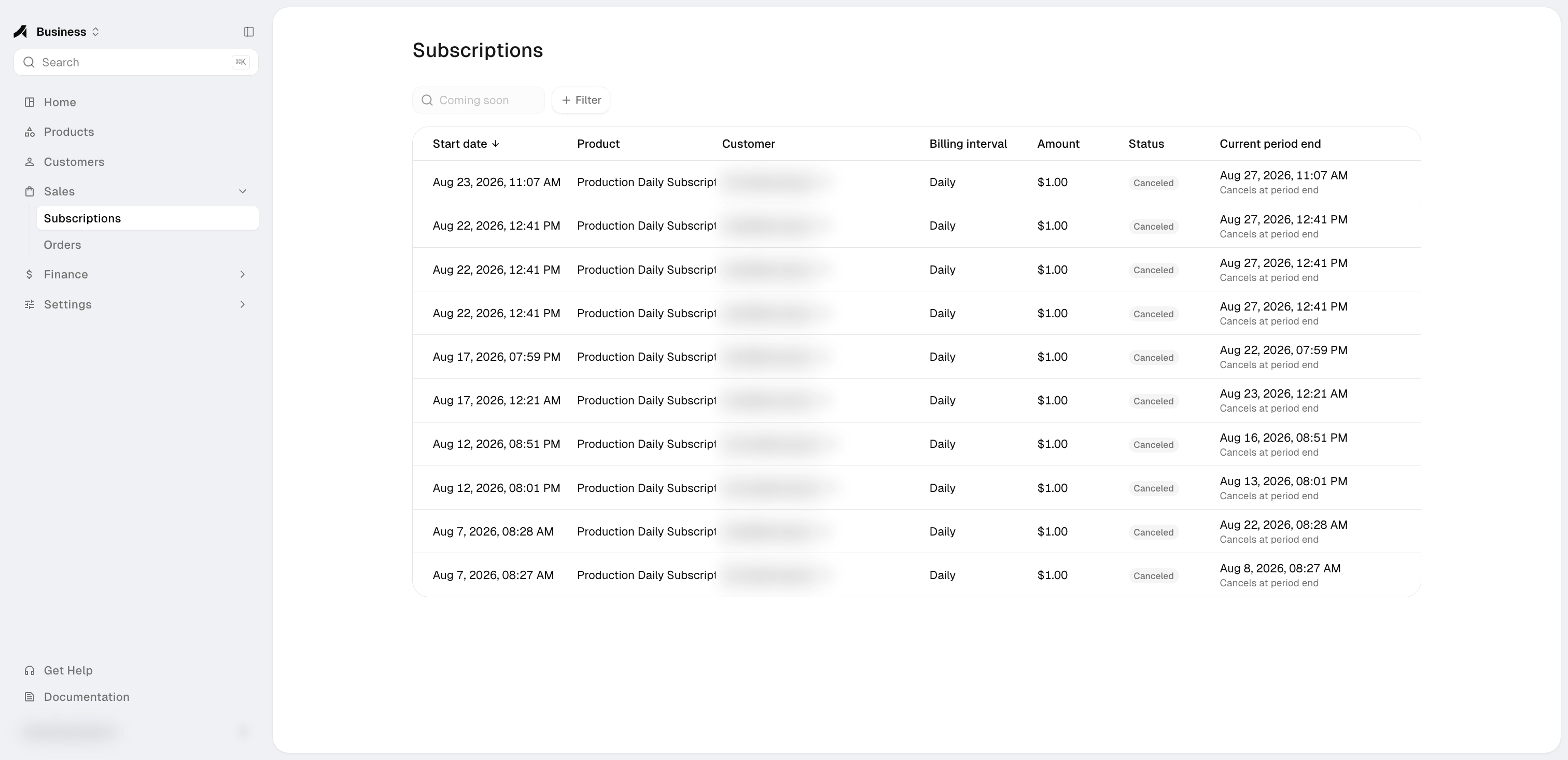
The Subscriptions page lists recurring customer subscriptions and supports status filtering. Open a subscription to inspect:- status, customer, product, amount, currency, and billing interval;
- the current period end and whether cancellation is scheduled; and
- the initial payment plus later renewal orders.
PENDING, ACTIVE, PAUSED, CANCELED, EXPIRED,
and ENDED. Billing intervals can be daily, monthly, or yearly. Recurring checkout is
available for supported Card / USD pricing; Crypto payment links remain one-time.
Order relationships
Use these relationships to distinguish one-time orders from initial and renewal charges
without relying on a payment-provider identifier.
Schedule cancellation
Canceling from the Subscriptions page schedules cancellation at the end of the current billing period. The subscription can remain active untilcurrentPeriodEnd; the detail
shows that state through cancelAtPeriodEnd. Refreshes and Webhook updates reconcile the
record with the payment provider.
You can also cancel from your backend with Cancel a subscription, which needs an API key with the sales:subscriptions:write permission.
Buyer self-service
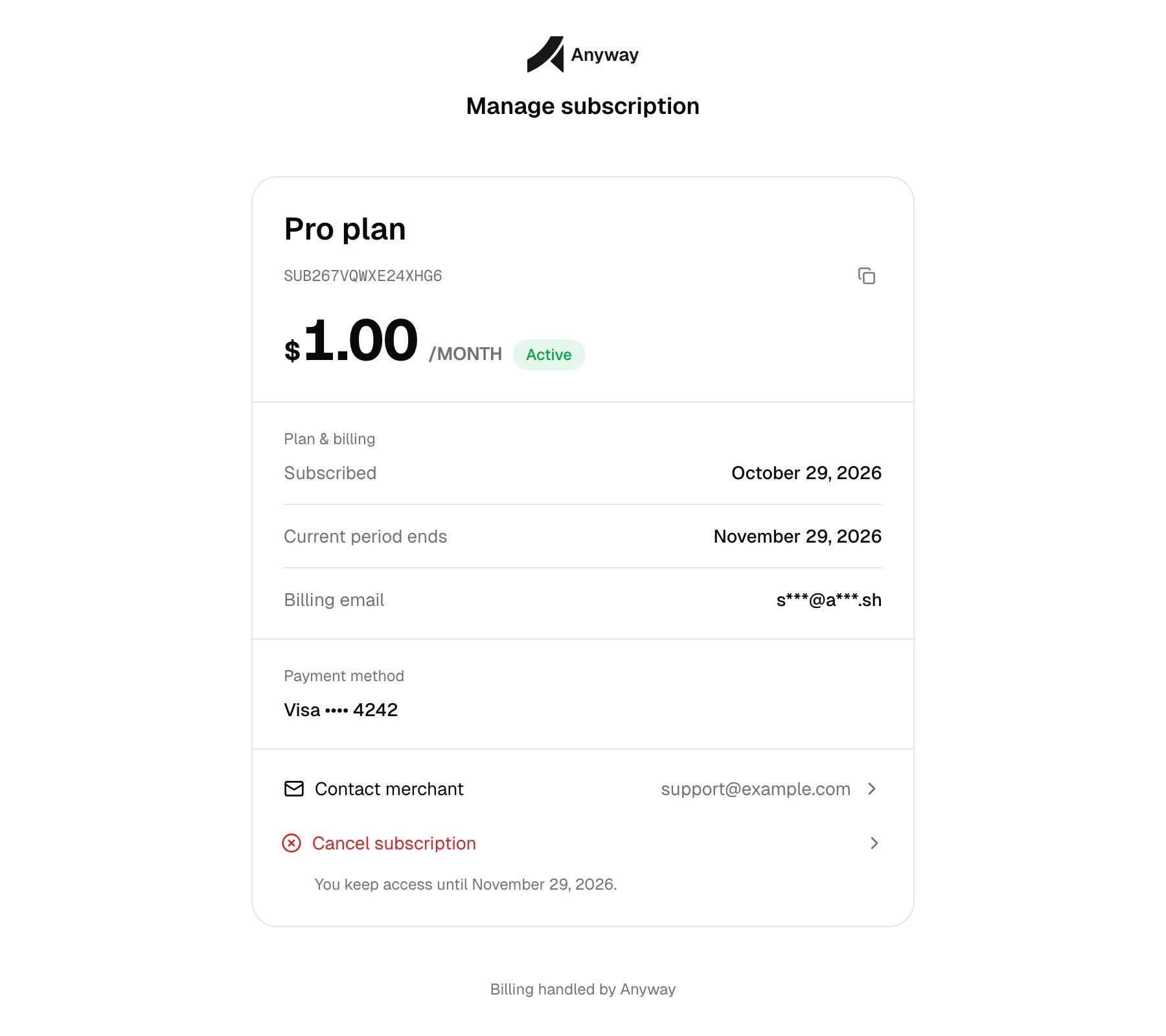
Buyers can also cancel on their own. After a subscription’s first payment, Anyway emails the buyer a subscription confirmation, in place of the usual payment receipt, with a Manage subscription button. The button opens a hosted page where the buyer, without signing in, can:- review the plan, price, status, start date, current period end, masked billing email, and the card on file (brand and last four digits);
- contact you at your organization Owner’s account email; and
- cancel the subscription.
cancelAtPeriodEnd, and
your Webhook endpoints receive subscription.updated. Only active subscriptions that are
not already scheduled to cancel can be canceled.
The link in the email is the only credential the page needs: anyone holding it can view
the summary and cancel. If a buyer loses the email, cancel for them from the
Subscriptions page.
Changing the card
Changing the card on an existing subscription is not supported yet, on the self-service page or in the Business app. To pay with a different card, the buyer cancels and then subscribes again through your payment link. The new subscription is charged right away and starts its own billing period, while the canceled one stays active until its current period ends.Subscription API
Read subscription lifecycle and order relationship fields from your backend.
Customer API
Read customer identities and use
customer_id to filter related records.