> ## Documentation Index
> Fetch the complete documentation index at: https://docs.anyway.sh/llms.txt
> Use this file to discover all available pages before exploring further.
# Organizations & Team
> Understand accounts, organizations, and members, then switch between organizations or create a new one.
Anyway separates the person who signs in from the business they work for. Invite your colleagues to your organization so each person signs in with their own email and works with the access their role allows.
## Accounts and organizations
| Term | What it means |
| - | - |
| **Account** | A person who signs in to Anyway with an email code or Google |
| **Organization** | The business workspace. Products, payment links, orders, customers, payouts, wallets, API keys, webhooks, and settings belong to the organization, not to a person |
| **Member** | An account that belongs to an organization, with exactly one role there |
One person can belong to several organizations and has one role in each. For example, you can be the Owner of your own organization and a Developer in a client's.
See what the Owner, Admin, Developer, and Finance roles can use, view, or not see.
## If you already use Anyway
Nothing changes until someone sends an invitation. Every existing account stays the sole Owner of its own organization, with the same products, payouts, and settings.
These keep working exactly as before:
* Merchant API integrations and existing API keys;
* webhook payloads;
* the buyer checkout;
* CLI and SDK usage.
## Switch organizations
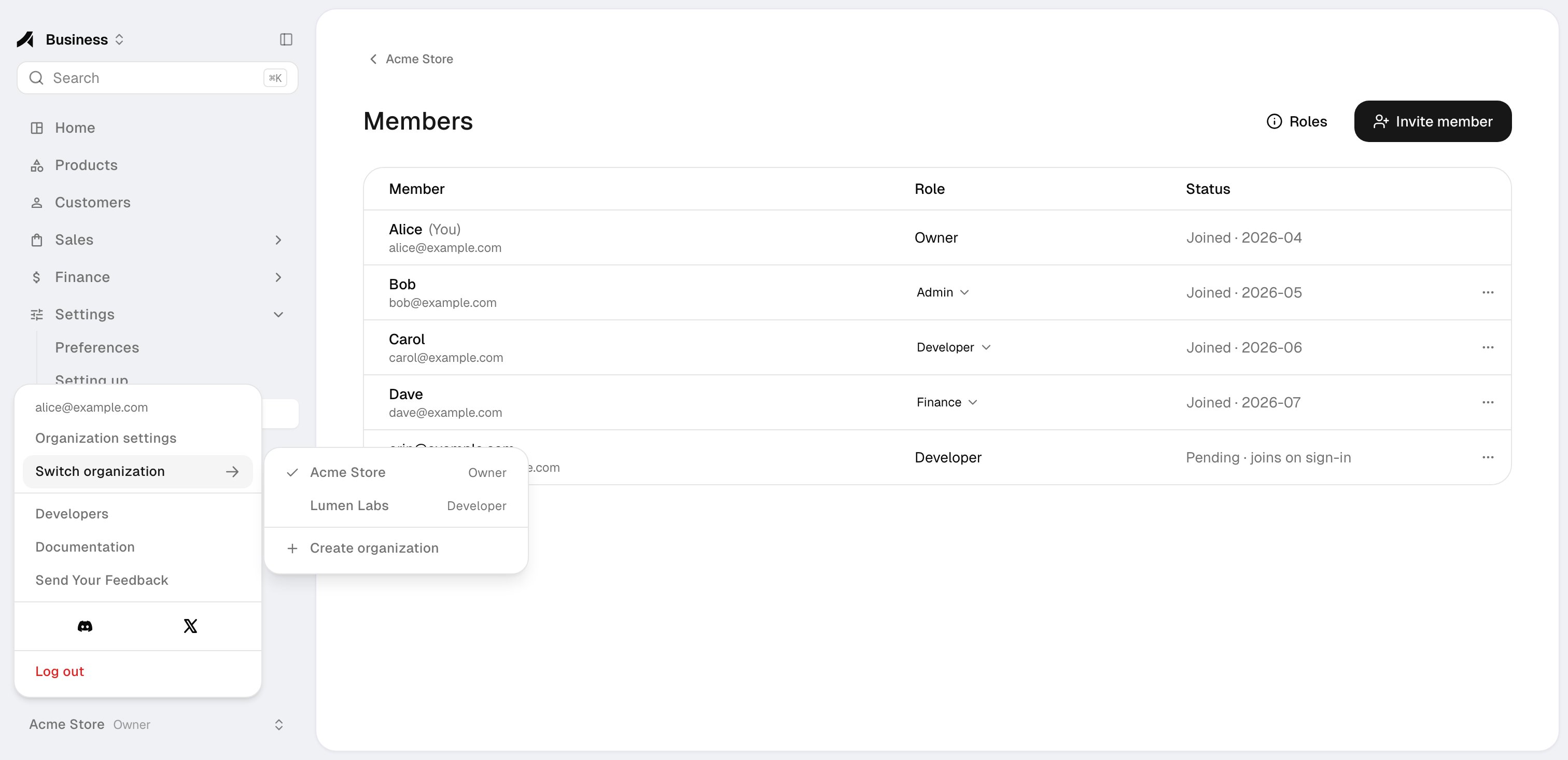
The account menu at the bottom-left of the sidebar shows the current organization and your role in it. It also holds your email, **Organization settings**, and **Switch organization**.
The submenu lists every organization you belong to, with your role in each. Organizations you just joined carry a **New** badge.
Click an organization to switch to it.
 ## Create an organization
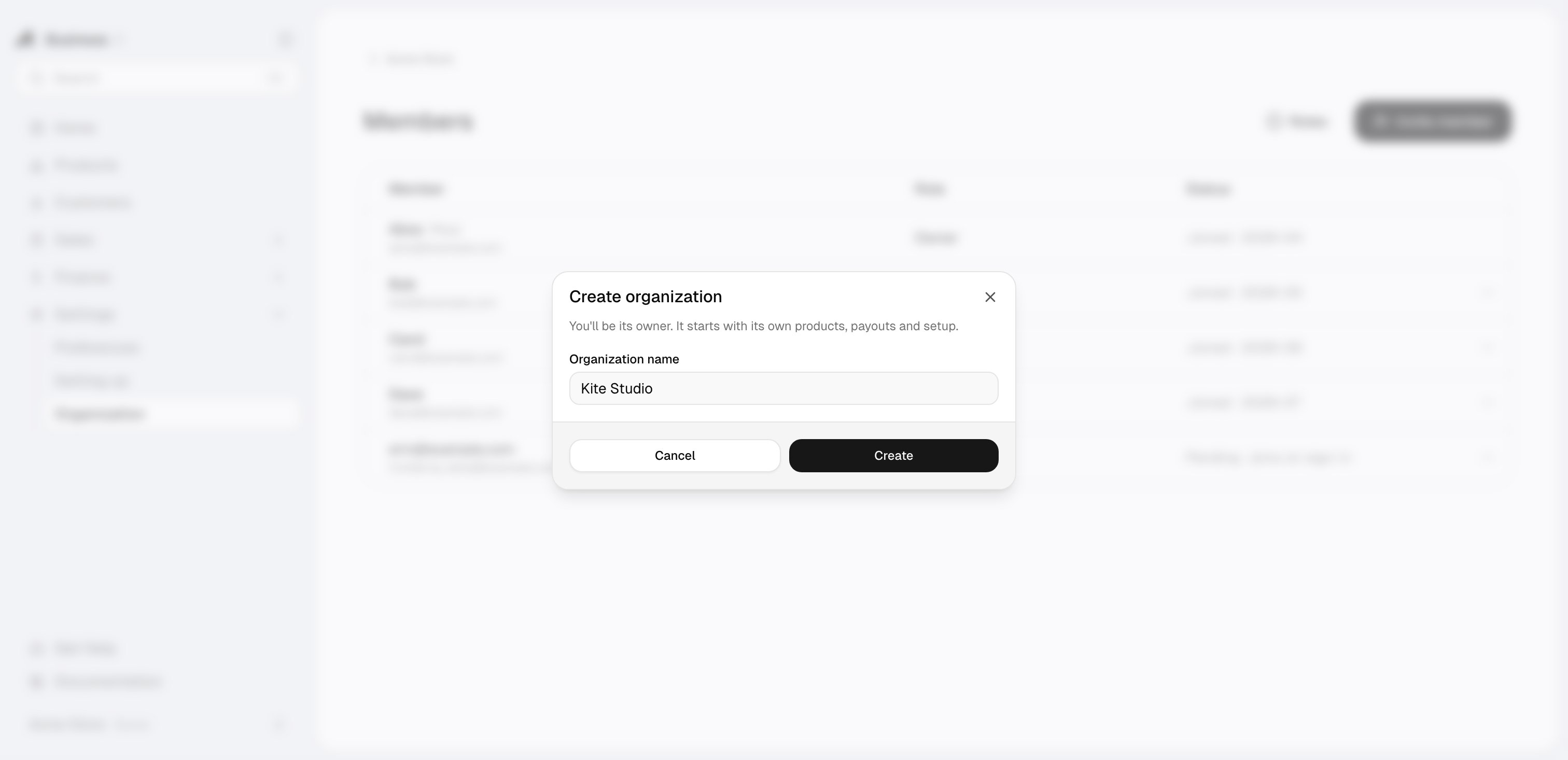
Open **Switch organization** in the account menu and select **Create organization**. Enter a name (required, up to 100 characters).
You become the Owner of the new organization. It starts with its own products, payouts, and settings. Each person can own up to 10 organizations.
## Create an organization
Open **Switch organization** in the account menu and select **Create organization**. Enter a name (required, up to 100 characters).
You become the Owner of the new organization. It starts with its own products, payouts, and settings. Each person can own up to 10 organizations.
 ## Organization settings
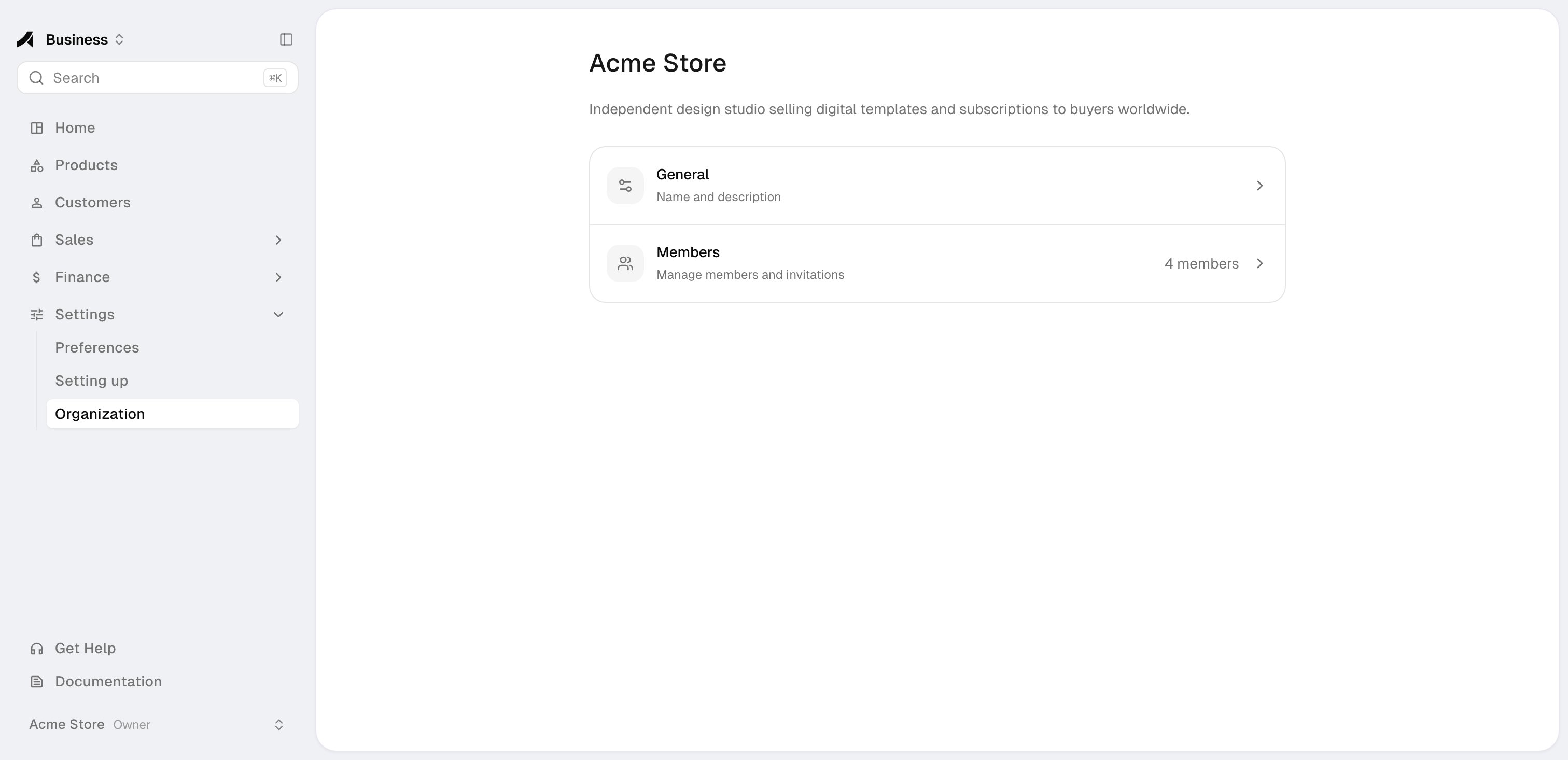
Open **Settings → Organization**, or select **Organization settings** in the account menu. The overview shows the organization's name and description, and its members with the member count.
The Owner and Admins can edit the name and description; other members see them read-only. The organization name is shown to buyers at checkout and on the subscription self-cancel page.
Press `⌘K` on macOS or `Ctrl+K` on Windows and Linux to switch or create an organization, open organization settings or members, or invite a member from the command palette.
## Organization settings
Open **Settings → Organization**, or select **Organization settings** in the account menu. The overview shows the organization's name and description, and its members with the member count.
The Owner and Admins can edit the name and description; other members see them read-only. The organization name is shown to buyers at checkout and on the subscription self-cancel page.
Press `⌘K` on macOS or `Ctrl+K` on Windows and Linux to switch or create an organization, open organization settings or members, or invite a member from the command palette.
 ## Not available yet
* Anyway does not send invitation emails yet. Tell the people you invite to sign in themselves.
* The **Viewer** role is coming soon and cannot be assigned yet.
* Transferring the Owner role is not self-serve. [Contact Anyway support](mailto:support@anyway.sh) if you need to change the Owner.
Invite colleagues, change roles, and remove members.
This documentation is built and hosted on [Mintlify](https://mintlify.com), a developer documentation platform.
## Not available yet
* Anyway does not send invitation emails yet. Tell the people you invite to sign in themselves.
* The **Viewer** role is coming soon and cannot be assigned yet.
* Transferring the Owner role is not self-serve. [Contact Anyway support](mailto:support@anyway.sh) if you need to change the Owner.
Invite colleagues, change roles, and remove members.
This documentation is built and hosted on [Mintlify](https://mintlify.com), a developer documentation platform.