> ## Documentation Index
> Fetch the complete documentation index at: https://docs.anyway.sh/llms.txt
> Use this file to discover all available pages before exploring further.
# Invite & Manage Members
> Invite colleagues to your organization, change their roles, and remove members.
The Owner and Admins invite and manage members. Other members can view the member list.
## Invite a member
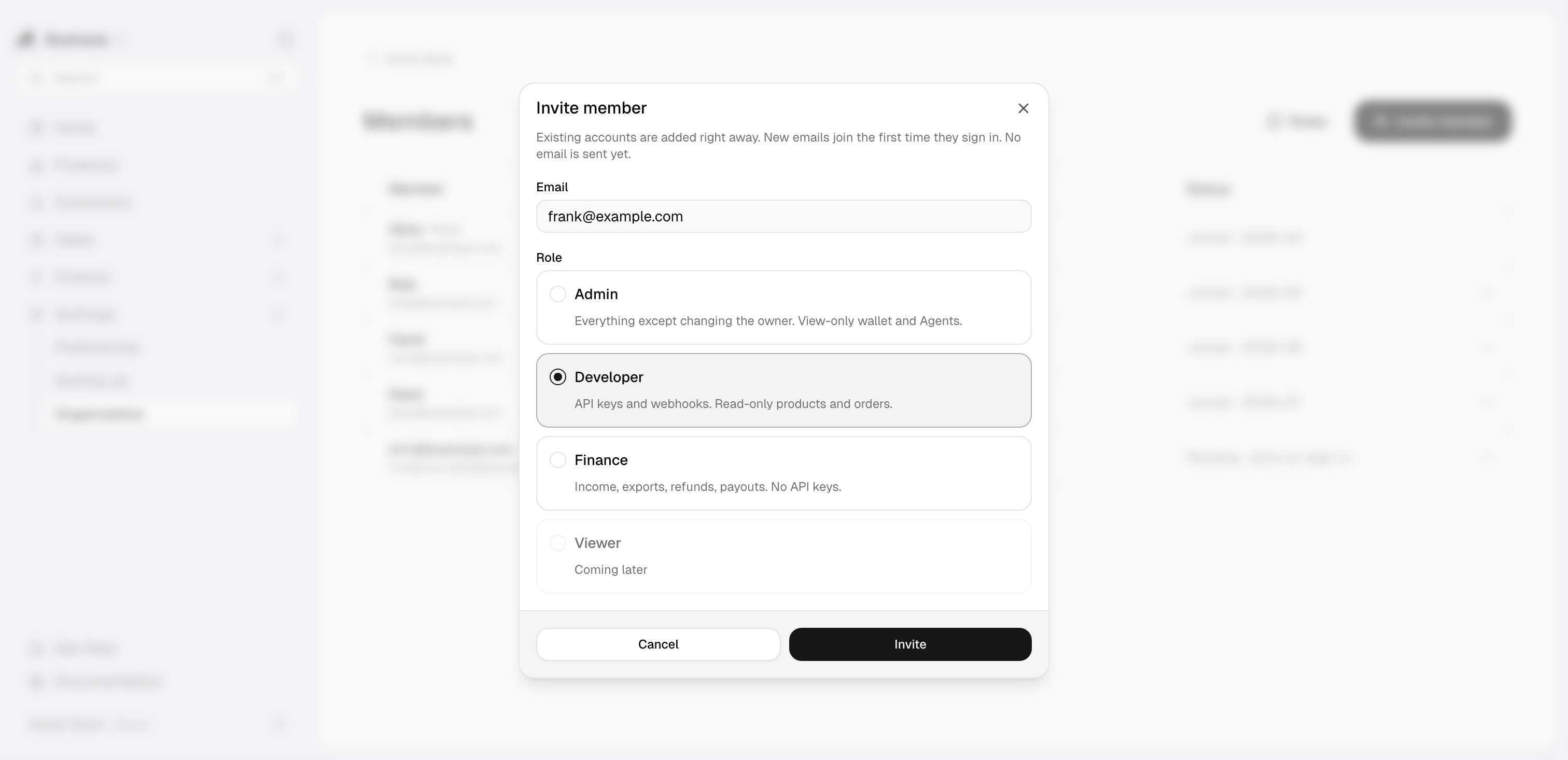
Go to **Settings → Organization → Members**.
Select **Invite member** and enter the person's email.
Choose **Admin**, **Developer**, or **Finance**. **Developer** is preselected. Open the role guide on the Members page if you are unsure which role fits.
Anyway does not send invitation emails yet. Ask the person to sign in at [app.anyway.sh](https://app.anyway.sh) with the invited email, using an email code or Google.
 What happens next depends on the email:
| Invited email | Result |
| - | - |
| Already has an Anyway account | The person joins the organization immediately |
| Has no Anyway account yet | The invitation stays **pending** until someone signs in with that email for the first time; they join then |
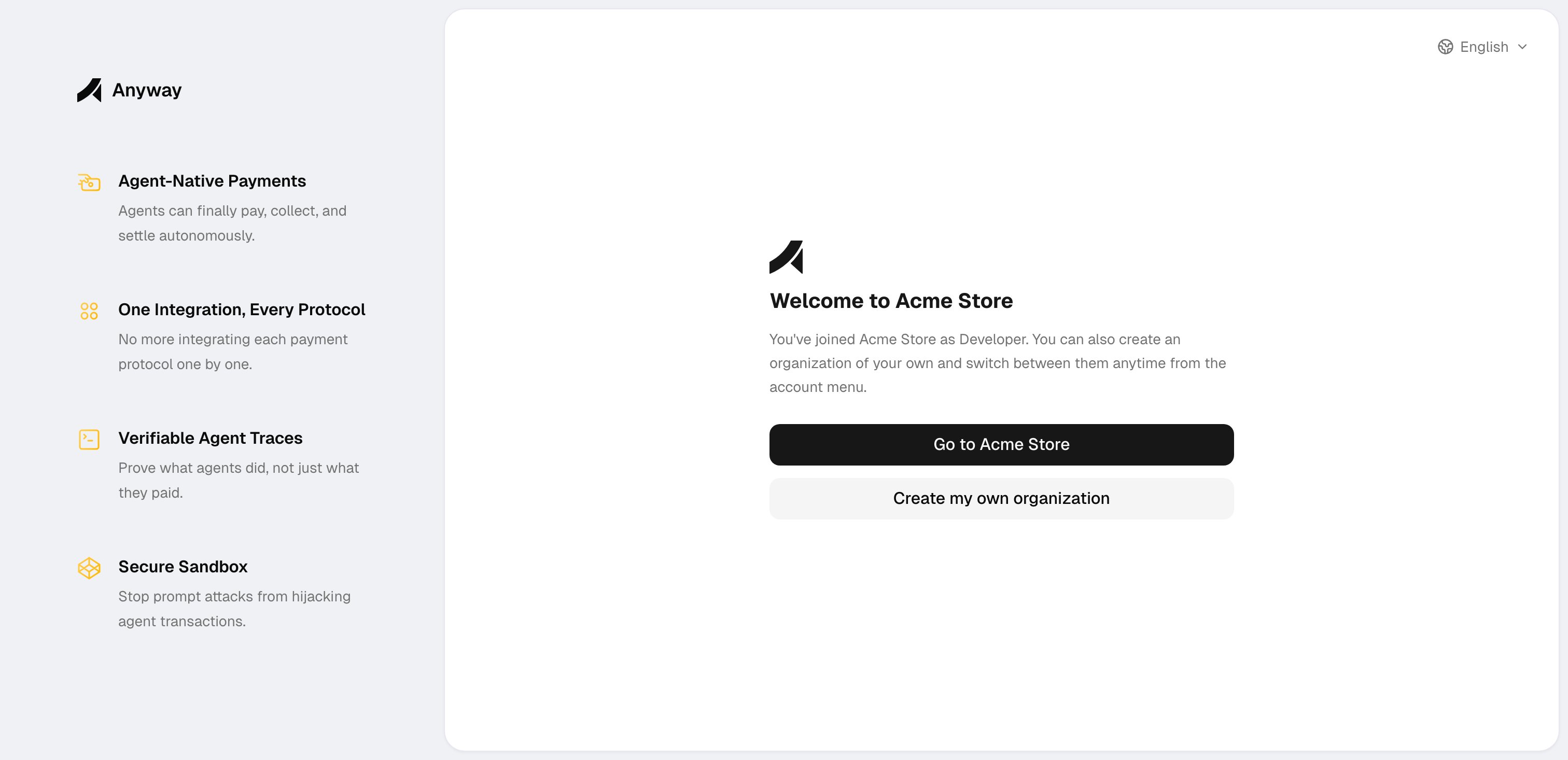
After joining, the person sees a welcome page where they can enter your organization or create their own. Someone who was invited to several organizations chooses which one to enter first. Each person accepts the Terms of Service for themselves.
What happens next depends on the email:
| Invited email | Result |
| - | - |
| Already has an Anyway account | The person joins the organization immediately |
| Has no Anyway account yet | The invitation stays **pending** until someone signs in with that email for the first time; they join then |
After joining, the person sees a welcome page where they can enter your organization or create their own. Someone who was invited to several organizations chooses which one to enter first. Each person accepts the Terms of Service for themselves.
 See [Roles & permissions](/team/roles) for what each role can do.
## Invitation rules
* Invitations do not expire.
* You can revoke a pending invitation with **Revoke invitation**.
* Each email can have one pending invitation per organization.
* An organization can send up to 20 invitations in any 24 hours.
## Review members
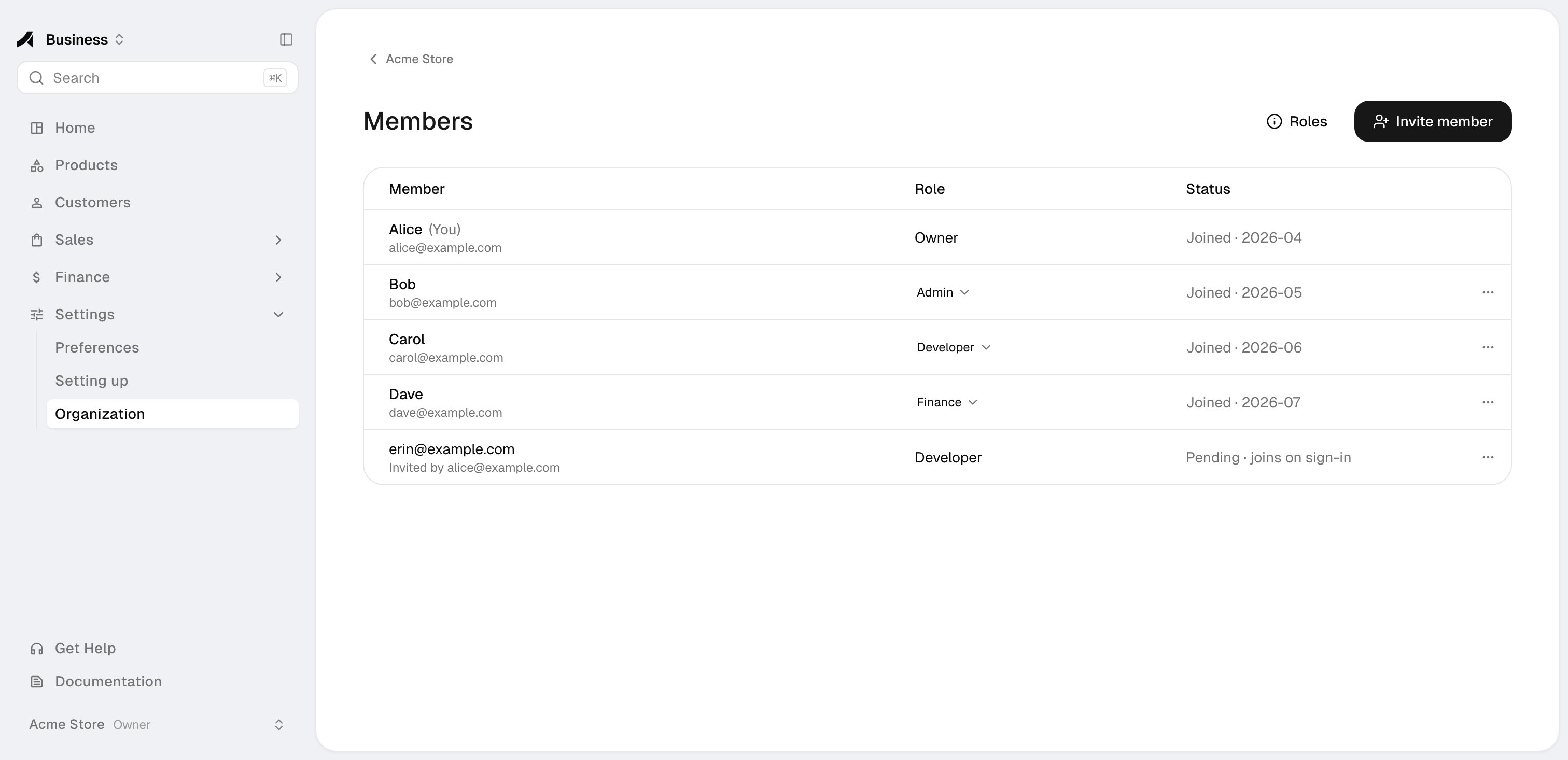
The members list shows each member's name and email, role, and status: the date they joined, or pending.
See [Roles & permissions](/team/roles) for what each role can do.
## Invitation rules
* Invitations do not expire.
* You can revoke a pending invitation with **Revoke invitation**.
* Each email can have one pending invitation per organization.
* An organization can send up to 20 invitations in any 24 hours.
## Review members
The members list shows each member's name and email, role, and status: the date they joined, or pending.
 ## Change a role
Open the role next to a member and choose a new one.
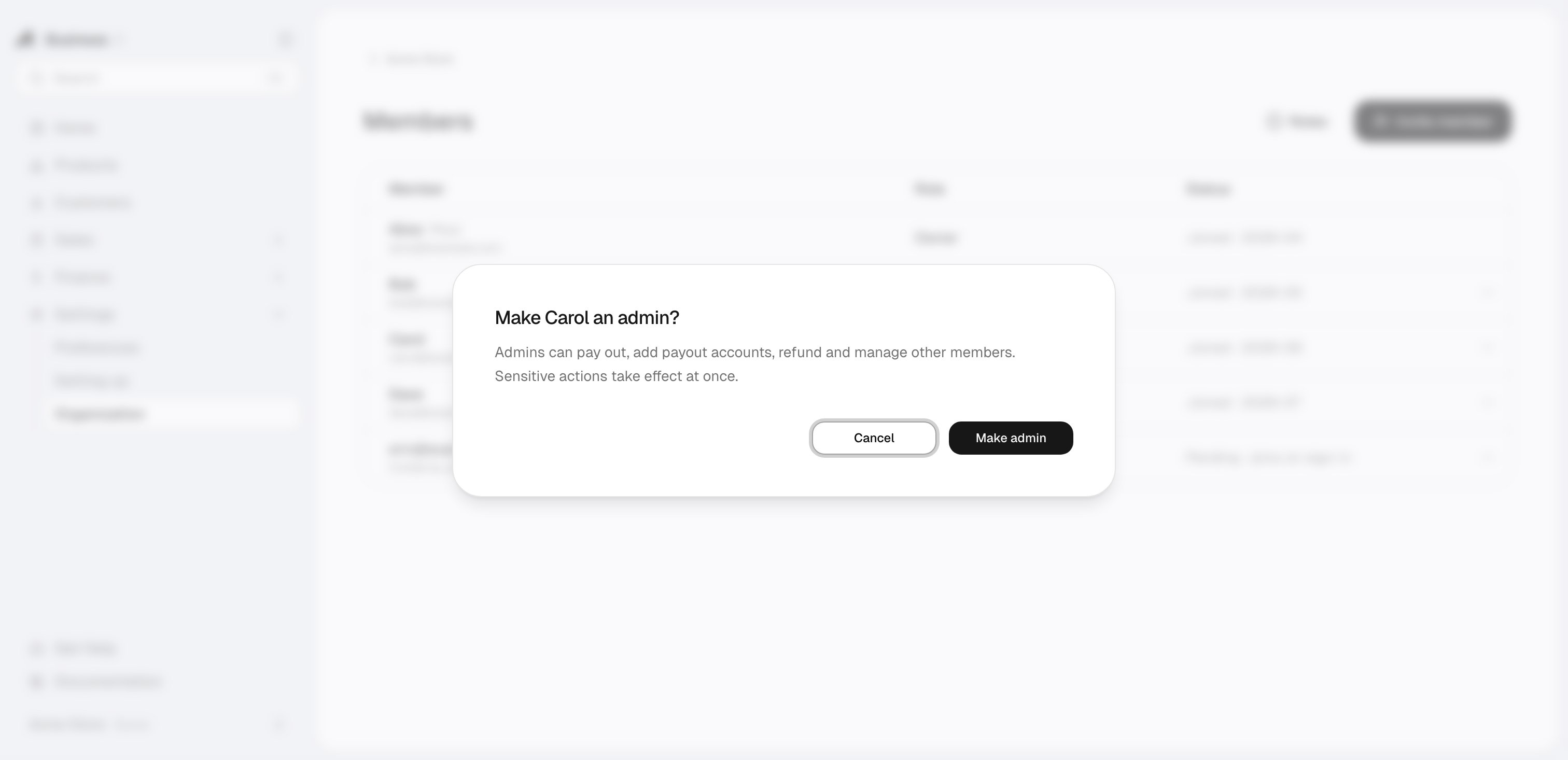
* Promoting someone to **Admin** asks you to confirm first.
* Other role changes can be undone for 10 seconds with **Undo**.
* You cannot change your own role, and the Owner's role cannot be changed.
## Change a role
Open the role next to a member and choose a new one.
* Promoting someone to **Admin** asks you to confirm first.
* Other role changes can be undone for 10 seconds with **Undo**.
* You cannot change your own role, and the Owner's role cannot be changed.
 ## Remove a member or leave
* **Remove** takes a member out of the organization. Their Anyway account stays; they only lose access to this organization.
* **Leave organization** is available to every member except the Owner.
A role change or removal applies to sensitive actions, such as payouts and member changes, immediately. It applies to every other page within 15 minutes.
## API keys stay with the organization
API keys belong to the organization, not to the person who created them. They keep working after that person leaves or is removed, so rotate them if needed. New API keys record who created them.
Create and manage API keys and webhook endpoints.
This documentation is built and hosted on [Mintlify](https://mintlify.com), a developer documentation platform.
## Remove a member or leave
* **Remove** takes a member out of the organization. Their Anyway account stays; they only lose access to this organization.
* **Leave organization** is available to every member except the Owner.
A role change or removal applies to sensitive actions, such as payouts and member changes, immediately. It applies to every other page within 15 minutes.
## API keys stay with the organization
API keys belong to the organization, not to the person who created them. They keep working after that person leaves or is removed, so rotate them if needed. New API keys record who created them.
Create and manage API keys and webhook endpoints.
This documentation is built and hosted on [Mintlify](https://mintlify.com), a developer documentation platform.